

What to do if your MCA Examiner does not show up
By: Fred, but mainly Emma :-)
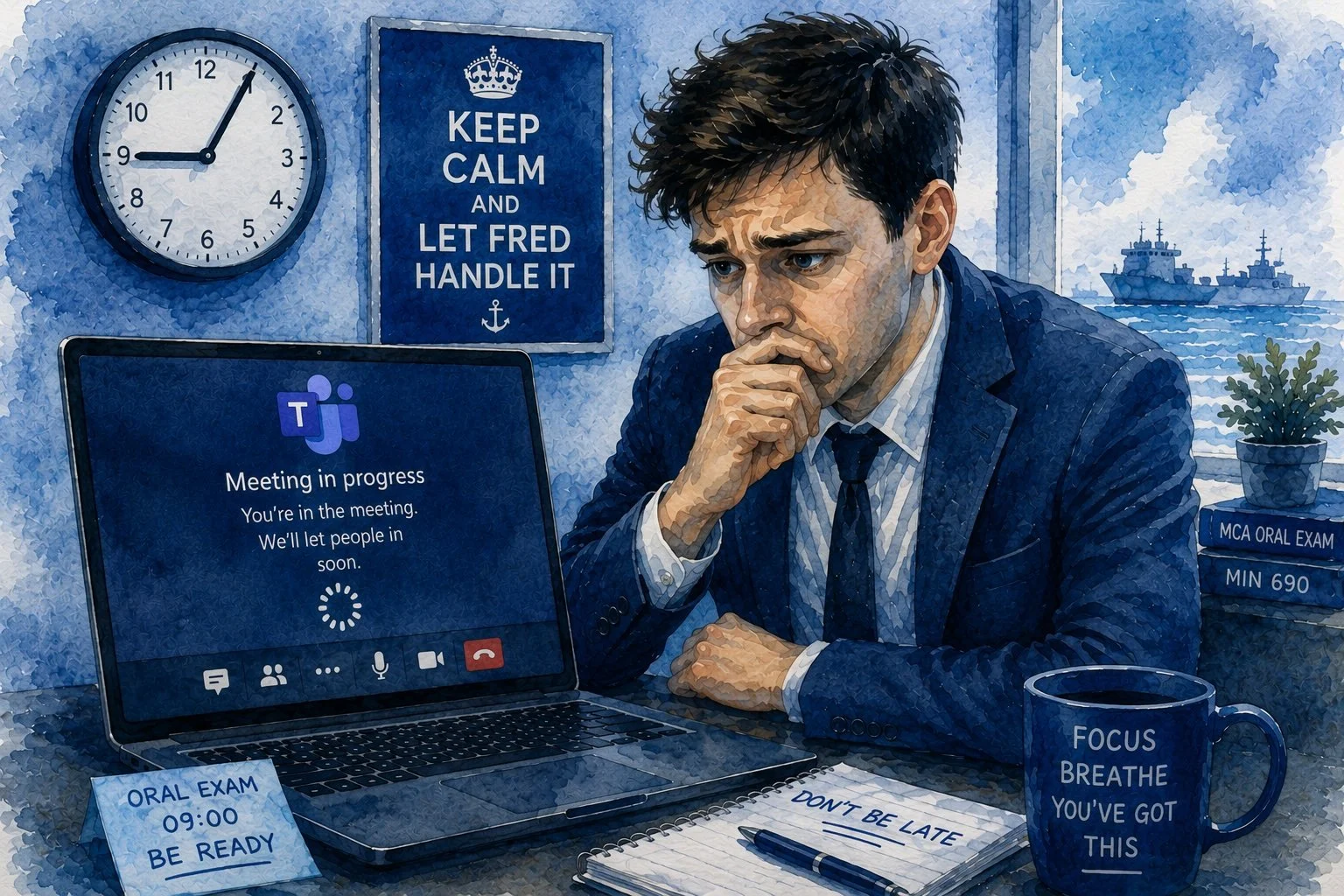
We’ve now seen this happen to multiple students.
You log in early.
You’re sitting there, ready.
And… nothing.
Then later you get an email saying:
You did not connect within 5 minutes → FAIL → 😫
No discussion. No grey area. Just a fail.
And here’s the painful bit
❌ You lose your attempt
❌ You have to reapply for a new NOE
❌ You pay again
❌ You wait again (sometimes 2-3 months for another exam spot)
We’ve seen it.
And if you don’t protect yourself properly… there’s often very little you can do afterwards.
Here is what you do:
⚠️ If you do not connect with the examiner within 5 minutes of the scheduled start time, it must be reported!
❶ Screenshot Everything
Take evidence immediately:
Time on your device
Teams screen showing waiting to be admitted
Any error messages
Failed connection attempts
❷ Email the MCA Immediately
Don’t wait.
Email while it is happening or within minutes.
Include:
Your name
DOB
SDS number
Exam time
Exam to be sat
Screenshot evidence
Use wording like:
“I am currently attempting to join my oral exam and am unable to connect”
Send to:
👉 This creates a time-stamped record
If you want to be super organised, have an email ready to go with the subject line:
URGENT: No Examiner for my exam
Send it as a new email, not as a reply to an old thread.
(Note: “Good afternoon Emma - We do not have a telephone number for the online oral exams team, however, we ask candidates to email onlineoralexams@mcga.gov.uk within 5 minutes of the start of the exam”)
❸ Immediately switch off and restart your computer
And try again!
Make sure it isn’t your setup - before exam day
Sometimes the issue is not the examiner - it is Microsoft Teams.
We already wrote a full guide on avoiding Teams problems before your exam:
Microsoft Teams – Troubleshooting Guide for Your Oral Exam
❗️Don’t Let Exam Day Be Your First Teams Practice or Tech Check
This guide covers:
Slow internet, you didn’t realise you had
Old laptops causing Teams issues
Outdated software
Wrong browser used on the day
Not downloading the proper Teams app
Using the web version when you shouldn’t
Getting the UK exam time wrong
Last-minute login disasters
Final Fred Tip
If anything feels wrong in the first 5 minutes:
Screenshot + Email Immediately.
Because once they mark it as a fail… it can be very difficult to reverse.
